
Miller Columns
See everything at once
Click a folder and its contents appear in the next column. You always see where you are and where you came from. Four view modes: Miller, Details, List and Icons.
- Ctrl+1
- Ctrl+2
- Ctrl+3
- Ctrl+4
 SPAN FinderFree
For power users who switched to Windows but never stopped missing column view.
Free · Windows · Automatic updates
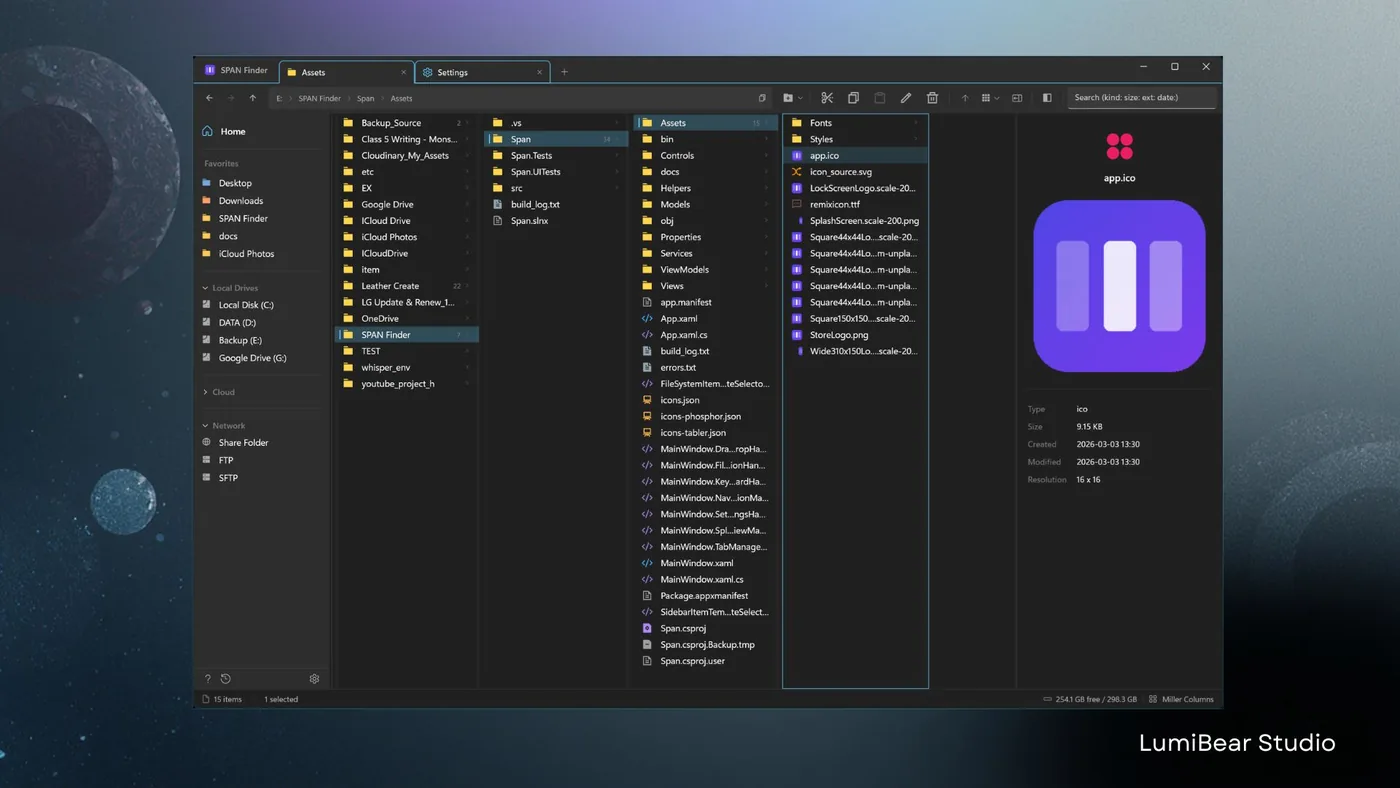
Miller Columns
Click a folder and its contents appear in the next column. You always see where you are and where you came from. Four view modes: Miller, Details, List and Icons.
Tabs
Unlimited tabs, each with its own path, view mode and history. Tear a tab off into a new window and dock it back. Close the app, reopen it — every tab is where you left it.
Preview
Press Space for Quick Look, macOS Finder style. Images, video, audio, code, PDF, fonts and hex — browse with the arrow keys without closing it.
Themes
10 themes, independent row height and font size, 10 fonts and 3 icon packs. Available in 9 languages.
Developer tools
Git status badges per file, a hex viewer, Ctrl+` to open a terminal at the current path, and FTP/FTPS/SFTP with encrypted saved credentials.
Search
Structured queries like type:image or size:>100MB, and type-ahead filtering in any column. Search never freezes the UI.
Privacy
No usage analytics. Sentry is used for crash reporting only — file names and paths are scrubbed, and you can turn it off in Settings.
Split view
Browse side by side with independent navigation and a different view mode per pane — Miller on the left, Details on the right. Drag files between panes to copy or move. Tested with 14,000+ items per folder.
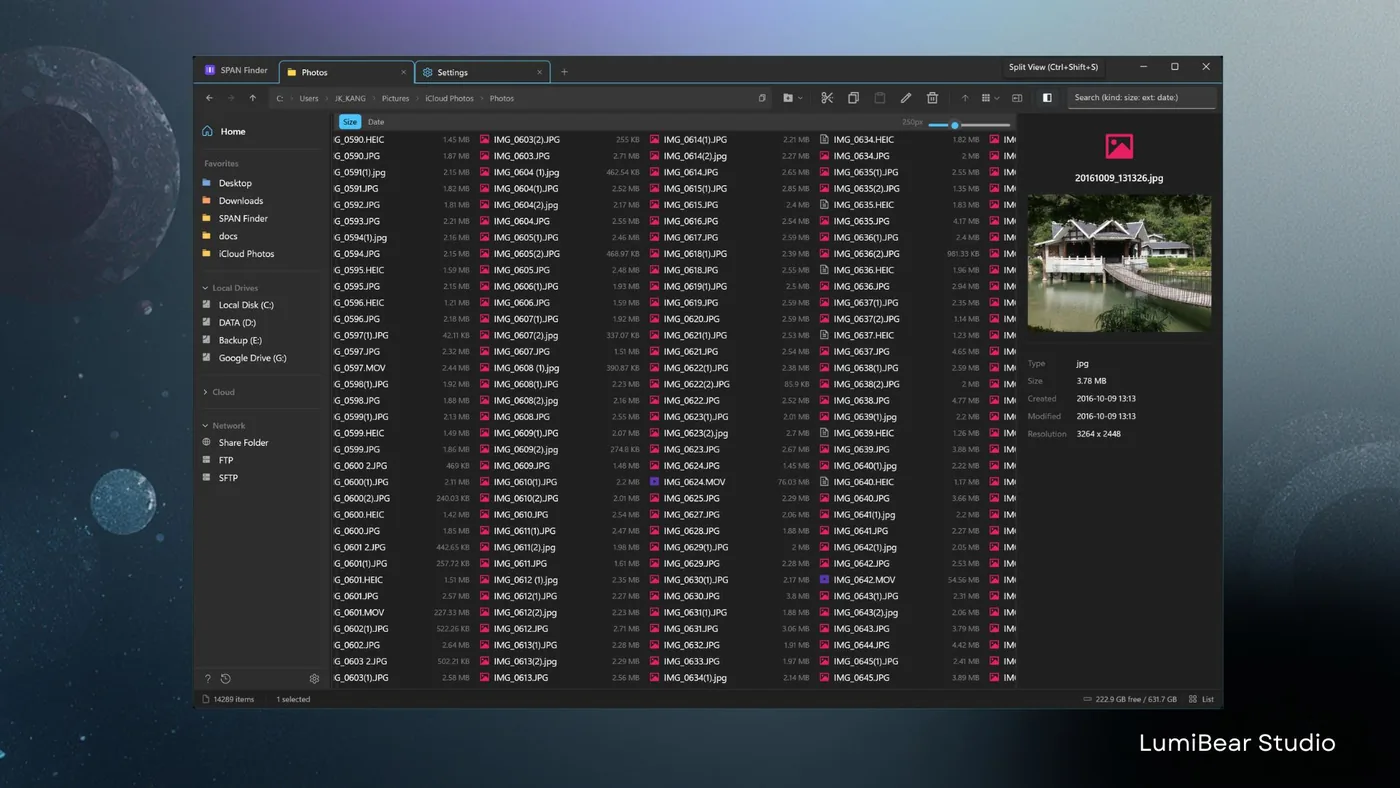
Install it free from the Microsoft Store, or with winget.
Install in one click and get updates automatically through the Microsoft Store.
Get it free from Microsoft StoreFree · Windows · Automatic updates
winget install 9P7NJ351X9TL --source msstoreSystem requirements